Protecting your information can feel overwhelming, but making small changes in how you handle digital security can pay big dividends. Understanding these steps can protect your accounts and devices.
Many people struggle with digital security because it is challenging to know what actually matters. One wrong click or weak password could lead to real problems now or later.
Many believe installing antivirus is enough, which leads to complacency and missed risks. Overlooking updates or ignoring two-factor authentication could leave your data exposed to cyberthreats.
This guide promises practical action you can take, in order, for better digital security. We’ll walk step by step so you can start protecting your online presence today.
Why People Remain Loyal to Essential Security Apps
Dedicated digital security apps offer convenience and peace of mind. Users stick with these tools due to intuitive features and real-time protection that adapts to evolving online threats.
With a reliable app, you get automatic updates, threat intelligence, and easy-to-understand settings. This makes defending your digital life less stressful and more effective than manual monitoring.
The Benefits of Reliable Digital Security Apps
Convenience motivates users to stay with quality security apps. Most allow scheduled scans, smart notifications, and trouble-free daily operation. You may forget it is running, but it works reliably.
Many expect security apps to stop all threats. This leads to disappointment if manual care is ignored. Apps complement—not replace—personal vigilance about links and attachments.
A counterintuitive insight: Over-customizing your tool can introduce gaps. Let the app’s default auto-update and threat detection features run without excessive manual tampering to maximize its effectiveness.
If you accidentally disabled updates, recover by opening the app, locating its Update or Protection panel, and clicking “Enable automatic updates”. Reset your settings if unsure. This alone closes many unseen risks.
Choosing Tools: What Most People Do Versus What Works
Most people just search for “best antivirus” and pick a free tool. Yet, paid apps with dedicated support and multi-device coverage tend to catch threats sooner and provide recovery help.
Step sequence: First, identify the app features you value: real-time scanning, VPN access, password management? Next, check system compatibility. Then, always read genuine user reviews before installing.
Many people overlook trial periods and money-back guarantees. Use them to test features, ease of use, and customer service without a long-term commitment or risk.
What actually works: Prioritize apps that provide a full bundle—malware defense, password vault, and secure browser extensions. This one-stop approach reduces weak spots across your devices.
Begin Strong: Avoid Common Digital Security Mistakes
A strong foundation stops threats early. Start by building good digital security habits—like password discipline and software updates—so issues are prevented before they escalate.
People make preventable mistakes when they reuse passwords, skip system updates, or ignore suspicious emails. We’ll show how to set yourself up to avoid these errors right from the start.
Install, Set Up, and Secure Your First Digital Security App
Start by installing your chosen security app from the official website or app store. Never use links from emails or unknown sources. This reduces installation of fake software.
During setup, grant only necessary permissions—full disk, network, and notifications. Block access to personal contacts or your camera if not essential to the app’s core functions.
Timebox your first security session to ten minutes. Update your device, review the app dashboard, and activate real-time protection. This helps you avoid procrastinating key steps.
Stop entering passwords into browsers unless you’re using a trusted password manager. This common shortcut can lead to password theft from hidden trackers or malware.
- Check your device for pending updates as soon as you install security software, so vulnerabilities are patched quickly.
- Set up a password manager and store your new, unique passwords there. Don’t write them on paper or re-use them anywhere else.
- Enable two-factor authentication on all major accounts—email, banking, and storage—for an extra layer of protection against intruders.
- Test your alerts by intentionally blocking a suspicious app or file, and review how both your device and security software react for future awareness.
- Review your privacy and messaging permissions, limiting app access to only what is essential. This reduces your exposure to data leaks or breaches.
If you skip these onboarding steps, future attacks may succeed even with security software installed. To recover, immediately check your update settings and change your important account passwords.
Smart Responses and Staying Safe in Real Time
To handle threats as they appear: Use real-time alerts, recognize suspicious communications, and act swiftly without panic. This matches digital security response with ongoing risk.
Many attacks circumvent basics by impersonating friends, companies, or apps. Being ready with the right response scripts helps prevent data leaks and identity theft.
How to Write a Profile That Encourages Genuine Conversation
Construct an email or account bio that’s professional, clear, and reveals nothing sensitive. For example: “IT enthusiast focused on digital security and privacy, here to share knowledge and help others.”
Don’t include your full name, address, or personal contacts in public bios or profiles. Instead, share your professional experience or areas of interest without compromising your safety.
A “two-thread opener” could be: “Hi, I noticed you work in cybersecurity and also enjoy hiking. Which security conference would you recommend, and what’s the best local trail you’ve found?”
Counterintuitive rule: Use a neutral, high-quality photo and avoid group images or logos. This makes your presence more trustworthy and discourages impersonators who prefer vague, impersonal profiles.
Tapping Safety Tools and Support Resources
Protect your accounts by enabling privacy settings. Hide your friends list, restrict public access, and limit who can tag, mention, or message you on social networks and forums.
If you encounter harassment or phishing, use the app’s report and block features. Usually, this is accessed from the user’s profile or message menu—look for “Report” or “Block” options and confirm.
Copyable message script: If someone crosses a boundary, reply, “Please stop contacting me. I prefer to keep my interactions professional. Further messages will be reported.” This sets a clear, enforceable expectation.
Review privacy settings weekly. Check each platform’s control panel for new options or recommended changes. This prevents accidental exposure from silent app updates or new features that alter defaults.
| Action | Benefit | Tip |
|---|---|---|
| Enable Two-Factor Authentication | Prevents unauthorized account access | Use an authenticator app whenever possible, not SMS |
| Activate Device Encryption | Keeps files secure if device is lost or stolen | Find in device security settings, enable, and create a strong recovery key |
| Set Regular Reminders for Updates | Stops exploits via unpatched software | Automate reminders monthly to check all devices and major apps |
| Review App Permissions | Limits exposure of location and private info | Revoke unnecessary permissions through your device or app settings panel |
| Use a Password Manager | Creates and stores strong, unique passwords | Choose a reputable manager that syncs across your devices securely |
Maintaining and Monitoring Your Digital Security Over Time
Continuous monitoring catches emerging threats before they escalate. Set regular check-ins for your accounts, devices, and the apps managing your digital security footprint.
Keep an activity log: Record account changes, logins from new devices, and significant software updates in a secure file. Review it monthly to catch unauthorized changes fast.
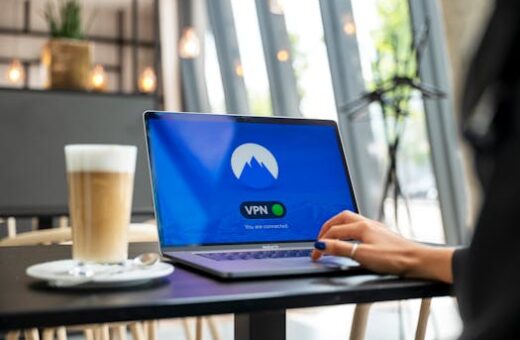
If you travel frequently, always enable a VPN, especially when using public Wi-Fi networks. This protects your data by encrypting your internet traffic and masking your location.
Avoid storing sensitive data on cloud services without encryption. Use encrypted archives or containers for files and only upload what is absolutely necessary for remote access.
Consider reviewing major account alert logs weekly. If you spot attempted logins or blocked access from an unfamiliar location, reset your password immediately to prevent unauthorized entry.
Common Pitfalls and How to Avoid Them
Some users believe their digital security tools are infallible. This belief leads to risky behavior, allowing attackers to slip through unnoticed and compromise personal or financial information.
Do not disable protection just to run unfamiliar software. Instead, search for sandboxing options or run new apps in a virtual environment to minimize exposure if malware is hidden inside.
If you receive repeated login prompts, check your network connection. However, also consider if phishing or brute-force attempts are underway on your account. Change passwords if it persists.
Watch for subtle social engineering tactics, such as urgent messages about “security breaches” that prompt you for personal details. Genuine companies will never ask for passwords via unsolicited messages.
Always verify the origin of high-alert notifications by contacting the provider directly via official channels. Never click on links in urgent security messages without double-checking their authenticity.
Best Practices for Families and Shared Devices
If you share devices, create separate user accounts for each family member. Do not reuse accounts or share administrative access unnecessarily on home computers or tablets.
Set up parental controls for younger users. These controls limit app downloads, restrict explicit content, and help prevent accidental disclosure of sensitive family information online.
Draft a family security policy together. For example: agree not to share Wi-Fi passwords with guests. Instead, set up a guest network and rotate its password monthly.
Discuss common scams openly. Teach family members how to recognize phishing, fake tech support calls, or suspicious popups—practicing a response script improves everyone’s digital security instinct.
Keep physical security in mind. Label devices, keep them out of sight in public, and enable device location tracking to help recover them if lost or stolen.
- Always log out of shared accounts after each session to protect your settings and prevent cross-user risks.
- Educate children and older adults about scam emails and suspicious download requests. Go through recent examples together.
- Rotate home Wi-Fi and guest passwords every few months, and update all family devices with the new credentials promptly.
- Secure shared devices with strong PINs or biometrics. Change lock codes if anyone outside the family uses the device temporarily.
- Review app installation logs for unfamiliar downloads each month, and uninstall anything not recognized or unnecessary for daily use.
Conclusion
Implementing regular software updates, unique passwords, and two-factor authentication builds a practical shield for your digital security. Use these actions across your devices for consistent coverage.
This ordered sequence is powerful because it gives you small wins that add up. Building habits around updates and alert responses will make your digital security resilient and flexible.
A subtle pitfall is neglecting ongoing attention. Skipping monthly checkups or assuming your software is still configured correctly could undermine all your prior work. Set calendar reminders to review protection.
Copy this action step: “Today, I will set up two-factor authentication on my most-used accounts, save all new backup codes, and schedule my first monthly digital security check.”