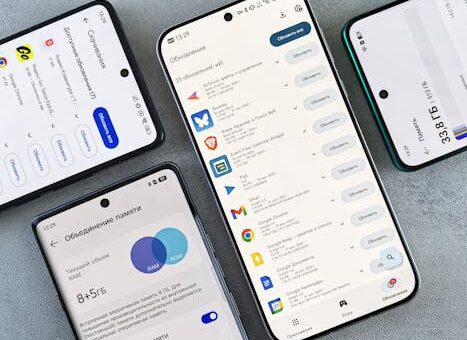
With so many apps, photos, and videos piling up, it quickly becomes essential to save phone storage as you go about your day. Space runs out just when you need it most.
Running out of storage can lead to frustrating moments, like not being able to capture an important picture or install a crucial update. This common issue disrupts your phone’s performance.
Some believe buying a phone with massive storage solves the problem forever. However, even the largest devices fill up faster than most users expect, especially with today’s larger file sizes.
This guide will help you save phone storage while keeping your device speedy and organized. You’ll learn actionable strategies and discover tools that make managing space simple.
Delete Unused Apps and Files for a Cleaner Device
Removing unused apps and unnecessary files is a simple way to recover valuable space. Many users overlook old downloads and clutter that accumulate over time.
Taking just a few minutes to review your home screen and file folders can free up significant storage. Prioritize large files first to see the biggest impact quickly.
Explore Your App Usage
An app you used daily a year ago might now just take up space. Go into your settings to see which apps are barely used or haven’t been opened in months.
Surprisingly, some social media or utility apps grow rapidly in storage use due to cached data. Delete these and reinstall if you need them again.
If you accidentally delete a needed app, simply download it again. Restoring most settings and data is easy via the app store or your backup service.
If you notice your phone is lagging or you can’t open new apps, go to: Settings – Storage – Apps. Remove anything obsolete. Try this exact approach next time you need extra space fast.
Regularly Clean Out Downloads and Media
Most people rarely revisit the downloads folder. However, it fills up quickly with everything from PDFs to memes. Review and delete anything you no longer need.
For music or video, streaming services let you remove locally stored offline files without losing playlists. Only keep your favorite albums or playlists downloaded.
Photos and screenshots occupy a chunk of space. Set a monthly reminder to move older media to cloud backup and erase them from local storage afterward.
What most do: Save all files, forgetting about them. What works: Delete regularly. Find download files in Files or Downloads app and swipe to delete each item.
Clear App Cache and Temporary Data for Instant Results
Clearing cached data releases storage immediately. Apps generate temporary files to speed up loading, but these build up quickly and can take gigabytes of space.
This quick fix can result in improved performance and is especially effective for browsers and social media apps that process a lot of images and videos.
Clear Individual App Caches
In your settings, you can see how much space each app cache occupies. For example: go to Settings – Apps – choose an app – tap Storage – Clear Cache.
Start with apps like Facebook, Instagram, and Chrome. These tend to generate the most cache data from frequent use.
Don’t clear all data unless you want to reset the app entirely. Clearing just the cache keeps your settings and login information safe.
Avoid clearing cache too aggressively, as some apps use cached files for speed—but make it a habit to do so monthly when you save phone storage.
Automate Temporary Data Cleanups
Certain phones, especially Android, offer “Smart Storage” or “Device Care” tools. Enable these features to regularly delete temporary files, clear cache, and remove unused files automatically.
Some third-party cleaning apps are available, but choose those with good reviews and privacy standards. Never provide access to apps you do not trust.
Schedule automated cleanups late at night or weekly. Make sure vital files are not deleted, so review settings before turning on automation.
Remember: Saving phone storage is about maintenance. Automations work best when paired with regular manual reviews to catch anything a cleaner might miss.
| App | Storage Feature | How to Access |
|---|---|---|
| Android Settings | Manage Storage | Settings – Storage – Free up Space |
| iOS Settings | Offload Unused Apps | Settings – General – iPhone Storage |
| Google Files | Clean Up Tool | Open Files app – Clean tab |
| Samsung Device Care | Auto-Optimize | Settings – Device care – Storage |
Move Photos and Videos to the Cloud
Photos and videos are responsible for quickly filling up phone storage, especially when taking high-resolution pictures or recording in 4K. Cloud services keep memories safe yet accessible.
Uploading to the cloud gives users a reliable way to save phone storage while maintaining access to their favorite moments from any device with internet access.
Set Up Automatic Photo Backup
Google Photos, iCloud, Amazon Photos, and OneDrive all offer automatic backup features. Activate these in your preferred app and grant permission for photos and videos access.
Choose the “Free Up Space” option in your chosen service once your upload is complete. This lets the app delete locally stored photos that are safely backed up online.
High-quality uploads save more space but may slightly reduce image quality. If you need originals, select the “Full Quality” upload option, understanding this will take more storage in the cloud.
If you delete a photo in Google Photos, using “Remove from Device” is safest. It will delete local copies but preserve those stored in the cloud. For Apple users, use iCloud optimization.
Manually Backup and Delete Media
If you don’t want to automate everything, transfer photos manually to cloud folders or your computer. Then delete photos and videos by selecting batches in your gallery.
Organize files by albums or event folders. This habit makes future cleanups quicker and helps you find specific memories later.
Before deleting, double-check the backup. Log in to your cloud account and confirm your media is visible there.
Avoid deleting all photos at once. First, move and check backup. Then erase local copies to guarantee nothing is lost during your mission to save phone storage.
Utilize Streaming Instead of Downloads
Switching from downloaded files to streaming music, podcasts, and videos means less local storage is used on your device. Most major services have robust cloud access options.
By adopting streaming, you can save phone storage and still enjoy the latest content on demand, only downloading tracks and episodes you’ll need offline.
Review and Remove Offline Content
Go to your streaming app’s downloads section. Remove shows, music, or podcasts you have already viewed. Only keep what you will listen to or watch soon.
Netflix, Spotify, and YouTube Music offer clear management tools under Downloads or Library. Look for “Manage Downloads” and use the bulk delete feature.
Some podcasts and playlists update automatically, filling storage with new files. Disable auto-download or limit downloads to recent content within app settings.
If you mistakenly delete an item but want to re-download, simply look it up again. Your streaming service almost always saves your preferences and history.
Embrace Cloud-Based Library Features
Cloud-based music and video libraries let you save phone storage by only downloading small portions of your collection. Use “favorites” to mark items for quick streaming later.
For travel or offline use, download only what you’ll need for that period. Delete temporary files afterwards to maintain optimal storage levels.
Library sync features mean playlists and favorites will stay intact, even if you switch devices. This reduces the need for redundant downloads.
The contrast: Most people keep everything “just in case” and max out storage. What works: Only select necessary offline files, then clear after use for ongoing space savings.
Manage Large Files and Attachments
Large files like movie downloads, presentation slides, or email attachments use significant storage quickly. Spotting and deleting them streamlines space management.
Targeting files based on size can yield impressive results, especially if you deal with work documents, Adobe files, or shared archives on your phone.
Identify and Remove Biggest Files
Most phones let you sort files by size in the file manager app. Delete any files you no longer need, such as temporary downloads, installers, or duplicated media.
Shared files from messaging apps are common culprits. Go into WhatsApp or Messenger, open Settings – Data and Storage, then clear media, voice notes, or old group files.
Before deletion, check if you need the latest version of a document or receipt. Save critical documents to cloud storage for safekeeping before you erase them locally.
Repeat this process each month to ensure ongoing savings as you seek to save phone storage efficiently.
Email and Messaging Attachments Clean-up
Email apps and messaging platforms store large attachments locally. Visit the attachments or downloads section, then clear older items after confirming you have copies elsewhere.
Use app features like “Clear Attachments” or “Manage Storage” to remove unused files without deleting the whole message chain.
For messages, set limits on how long attachments and media are saved. Many apps now include settings for timed deletion.
Instead of saving every attachment, move only essential files to an organized folder or external storage solution. This ensures you only store what is truly necessary.
Optimize Device Settings for Sustainable Storage
Device settings present powerful options to save phone storage automatically without constant manual cleanups. Adjust your preferences to maximize long-term results.
There are hidden features in both iOS and Android that let you decide how your device manages app data, photo storage, and file downloads.
Enable Smart Storage or Offloading
On iPhone, enable “Offload Unused Apps” in Settings – General – iPhone Storage. This keeps app data safe while removing the app itself if unused.
Android users should seek out “Smart Storage” options, which automatically delete old photos and media backed up to Google Photos. This setting saves you from manual deletions.
Don’t worry about losing information – both features keep your user data and allow quick reinstallation whenever needed.
Set up push notifications for storage warnings. These remind you when space is tight, prompting timely action and helping you save phone storage before you run into problems.
Fine-Tune Download and Media Quality
Many apps default to the highest quality for photos, videos, and music. Lower these settings where possible – for example, by selecting “standard” instead of “HD.”
Update sharing preferences for Bluetooth, AirDrop, or messaging to reduce the risk of duplicate downloads by granting permission only for files you truly want to receive.
Set your camera or app to optimize file sizes. Some phones offer “HEIF” or “HEVC” formats that save space without a major quality loss.
Review your device every few months for apps or settings that could be better adjusted as new updates and options emerge to save phone storage.
- Weekly review home screen and files. Delete unused apps. Why: Fewer apps means less data buildup and fewer updates taking extra space on your phone.
- After a vacation or event, back up all new photos and videos to cloud storage. How: Use Wi-Fi to avoid data charges and save mobile storage for daily use.
- Monthly, go to settings and clear cache from social, streaming, or shopping apps. Why: Old cache can add up to gigabytes and slow down your device.
- Set up streaming apps to only download new podcasts or music for offline use while traveling. Delete them immediately after use to keep storage ready for next time.
- Every quarter, check storage settings for new features like app offloading or Smart Storage. Adjust preferences based on what you use most and keep your phone running well.
Leverage External Storage and Accessories
External storage options can significantly extend your device’s storage capacity. Memory cards, wireless drives, and USB devices offer practical ways to move and back up files.
For Android phones that support microSD cards, adding external storage gives you space for apps, media, and documents without affecting internal storage usage.
Attach and Use SD Cards or Flash Drives
Insert a microSD card into your phone’s slot, following the device manual. Move large files, photos, or downloads using your phone’s settings or file app.
On iPhone, use compatible Lightning or USB-C flash drives. Use the Files app or third-party apps to transfer and access saved files.
SD cards also help split personal and work files, which makes organization simpler and saves phone storage for critical applications and system updates.
Formatting and encrypting external storage before use is advised to protect your files and guarantee compatibility between devices.
Wireless and Cloud-Based Accessories
Wireless drives or portable SSDs connect via Wi-Fi or Bluetooth. Transfer media and documents quickly and store larger files off your primary device.
Pair your wireless storage device with a file management app for seamless transfer. This option is ideal when you need to save phone storage without plugging in cables.
Opt for reputable accessories with positive reviews to ensure security. Check that your device’s operating system and apps support the accessory type you select.
Backup important files from your device to accessories regularly. This additional layer of storage ensures critical data is always safe and accessible should you need to free up internal space fast.
Conclusion
To recap: regularly delete unused apps, automate cache clearing, move media to the cloud, and review big files. Adjust device settings and leverage accessories for lasting results.
Following these steps works because they address short-term and long-term storage challenges. Combining manual and automated methods keeps your device efficient and prevents last-minute panic.
A common pitfall is ignoring regular maintenance. Avoid waiting until your phone is full. Schedule monthly or quarterly reviews to spot issues before they disrupt your use.
Start your storage maintenance by opening your Settings app and reviewing suggestions today. Every small step adds up, making it easier to save phone storage permanently.